 Penna
PennaHome / Photo to coloring page
How to turn a photo into a printable coloring page
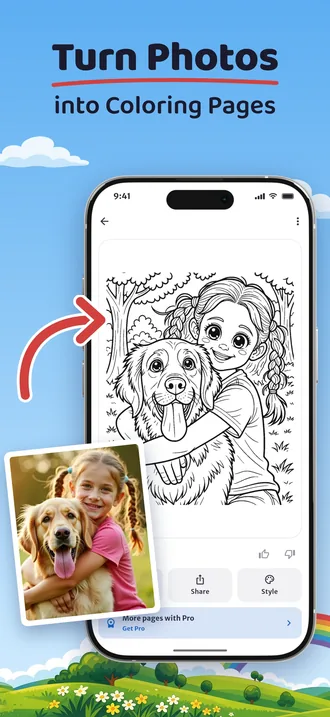
To turn a photo into a printable coloring page, open Penna on your iPhone or Android phone, take or choose a photo, pick a style, and Penna draws a black-and-white page that is ready to print on A4 or US Letter paper.
It works with photos of children, pets, grandparents and places, and you can try it free.
Step by step
Get Penna
Install Penna from the App Store or Google Play. There is no account to create.
Take or choose a photo
Tap the camera to take a new photo, or pick one from your photo library.
Pick a style
Choose cartoon, classic coloring book or anime, and how much detail you want.
Get your page
Penna draws the photo as clean black-and-white line art and saves it in your Library.
Print it
Tap Print and choose A4 or US Letter, or save the page to your photos or share it as a PDF.
Make your first page
Free to try: 2 pages to start. No account needed.
Which photos make the best coloring pages
- Good light and a sharp photo. Daylight from a window works better than a dark room.
- A face that is easy to see. Close-ups and half-body shots give the clearest lines.
- A simple background. A busy background turns into many small shapes to color.
- Pets, groups and places work too. A dog on the sofa, the whole family, a favorite playground.
Pick the right style for the child
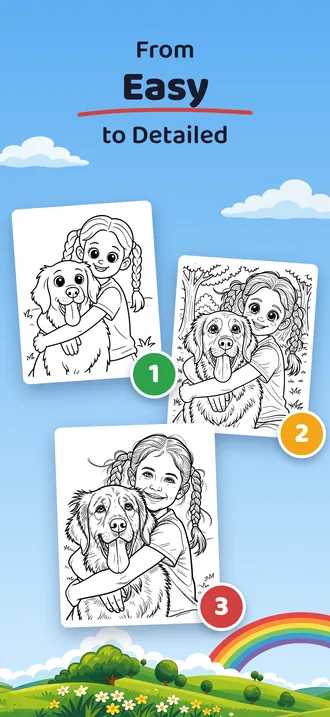
Cartoon has bold outlines and big shapes, easy for small hands and chunky crayons.
Classic coloring book comes in three levels of detail, from simple to finely drawn, for older children and adults.
Anime has two styles, Mini Chibi and Kodomo, with big eyes and round faces.
Or put them into a scene
Instead of drawing the photo as it is, Penna can draw the person in it into one of 24 adventure scenes: a dragon or unicorn ride, outer space, under the sea, pirates, a race car, a fire truck and more. Scenes need a photo with one person in it.
Printing your page
Pages print on A4 or US Letter from your phone's print menu, at print quality (300 dpi). Everyday printer paper is fine for crayons and colored pencils; for markers, heavier paper keeps the ink from soaking through. More tips are in the FAQ.
Made several pages? Put them together as a custom coloring book and print them as one PDF.
Questions
How do I turn a picture into a printable coloring page?
Open Penna, take or pick a photo, choose a style, and print the page Penna draws on A4 or US Letter paper. You can also save it to your photos or share it as a PDF.
Can I turn a photo into a coloring page for free?
Yes. Penna is free to try: 2 pages to start. Penna Pro gives you many more pages, enough for whole coloring books, and book covers with a title.
Can I make a coloring page of my child?
Yes. Use a clear photo of your child, and Penna turns it into a coloring page. You can also draw your child into one of 24 adventure scenes, such as riding a dinosaur.
Does it work with photos of pets?
Yes. Dogs, cats and other pets make good coloring pages, alone or together with their people.
What happens to my photo?
Your photo is deleted right after processing. The finished page is saved on your phone.
More ideas
How to make a custom coloring book from your photos
Make a personalized coloring book from your own photos with Penna: turn photos into pages, put them in order, export one PDF and print it at home.
A coloring book of the grandchildren, a gift for grandparents who have everything
A gift for grandparents who have everything: a coloring book made from photos of the grandchildren. How to make one with Penna and print it at home.
Rainy day activities for kids at home, no screens needed
18 screen-free rainy day activities for kids at home: blanket forts, indoor scavenger hunts, baking, puppet shows, puddle walks and coloring pages of themselves.
Penna questions and answers
Answers about Penna: what happens to your photos, how to print pages and books, which paper to use, what is free and what Penna Pro adds, and which phones it runs on.
Make your first page
Penna is free to try on iPhone, iPad and Android.
Scan this code with your phone's camera to get Penna.
Free to try: 2 pages to start. No account needed.